

Connecting Google lets your reviews show up inside Amplify and makes sure every review request sends people to your Google profile. It takes a couple of minutes.
Before you start
You need to log in with the Google account that manages your Business Profile. If someone else set up your profile years ago, find out which account that was first.
Connect it
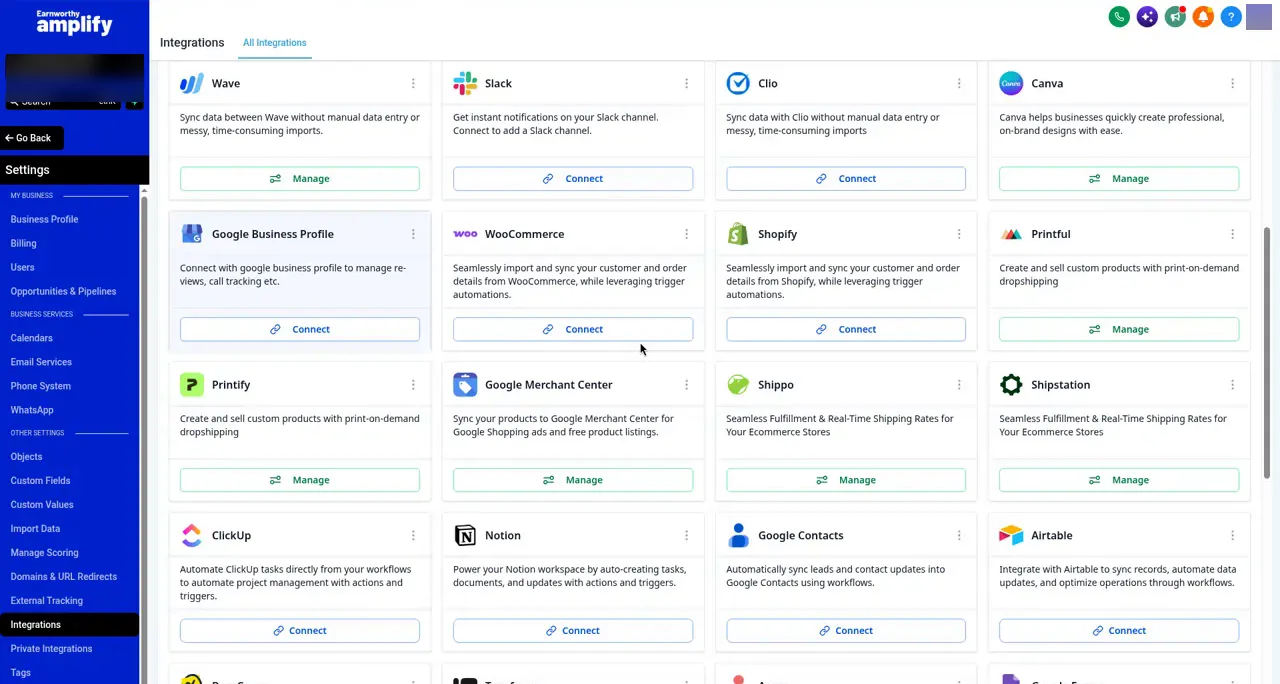
- Go to Settings, then Integrations (that's the label in the app).
- Find Google Business Profile and click Connect.
- Sign in with the Google account that manages your profile.
- Allow every permission Google asks for. Skipping one causes problems later.
- Pick your business location from the list and connect it.
When it works, you'll see a green Connected status and your business name.
Not seeing your business in the list?
That almost always means you signed in with the wrong Google account. Disconnect, then try again with the account that owns or manages the profile.
FAQ
I connected it, but I can't find the option to optimize my profile.
That's part of Amplify Growth. See Connected Your Google Profile but Can't Find the Option to Optimize It?
Can you connect it for me?
Since it's your Google account, you'll usually need to sign in. Email support@earnworthy.com and we'll walk through it with you, or book time in a live session. See How to Get Help.
Next step: Connecting Facebook and Instagram.