

Your profile is who you are inside Amplify. Your users are the people on your team who can log in. Take five minutes to get both right.
Check your profile
- Click Settings at the bottom of the left menu.
- Open My Profile.
- Check your name, email, and phone number. Your email is also your login.
- Save any changes.
Your profile email matters more than you'd think. Form alerts go there by default. See Where Do Form Notifications Go?
Add a team member
Your plan includes up to 5 users.
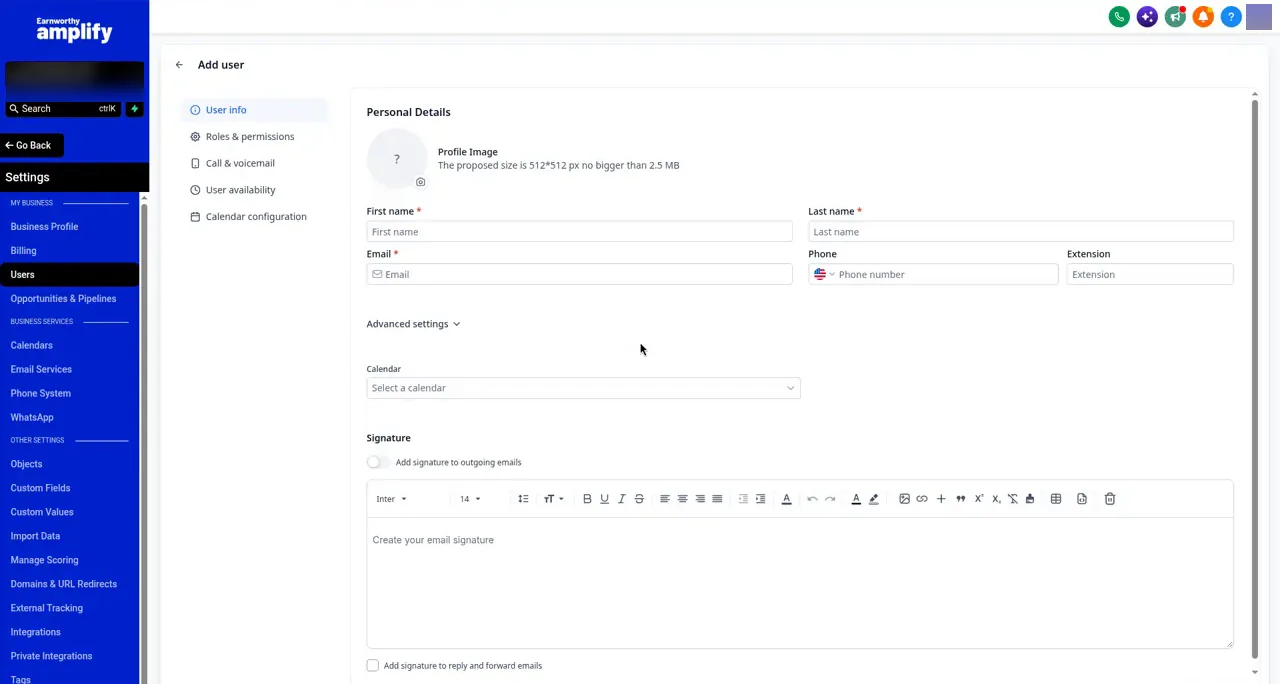
- Go to Settings, then My Staff (some accounts show it as Users).
- Click Add User.
- Enter their name, email, and phone.
- Under roles and permissions, pick Admin for full access or User for limited access.
- Save. They'll get an email to log in.
Rather have us do it? Email support@earnworthy.com with each person's name, email, and what they should be able to see.
Who sees which conversations?
Each user can see every conversation, or only the ones assigned to them. We set this up the way you want it. Tell us if you'd like it changed.
FAQ
Someone left my company. How do I remove them?
Go to Settings, then My Staff, find them, and delete or deactivate their user. Or email us and we'll handle it.
What's the difference between Admin and User?
Admin can see and change nearly everything. User only gets the areas you switch on.
Next step: Connecting Your Google Business Profile.