

We set up your booking calendar during onboarding. Your job is to check that it only offers times you actually want to work.
Check these three things
- Your weekly hours. Go to Calendars, then Calendar Settings, open your calendar, and look at the Availability tab.
- Days off coming up. Add holidays or vacation as Date-Specific Hours.
- How much notice you need. Set a minimum scheduling notice so nobody books you for an hour from now.
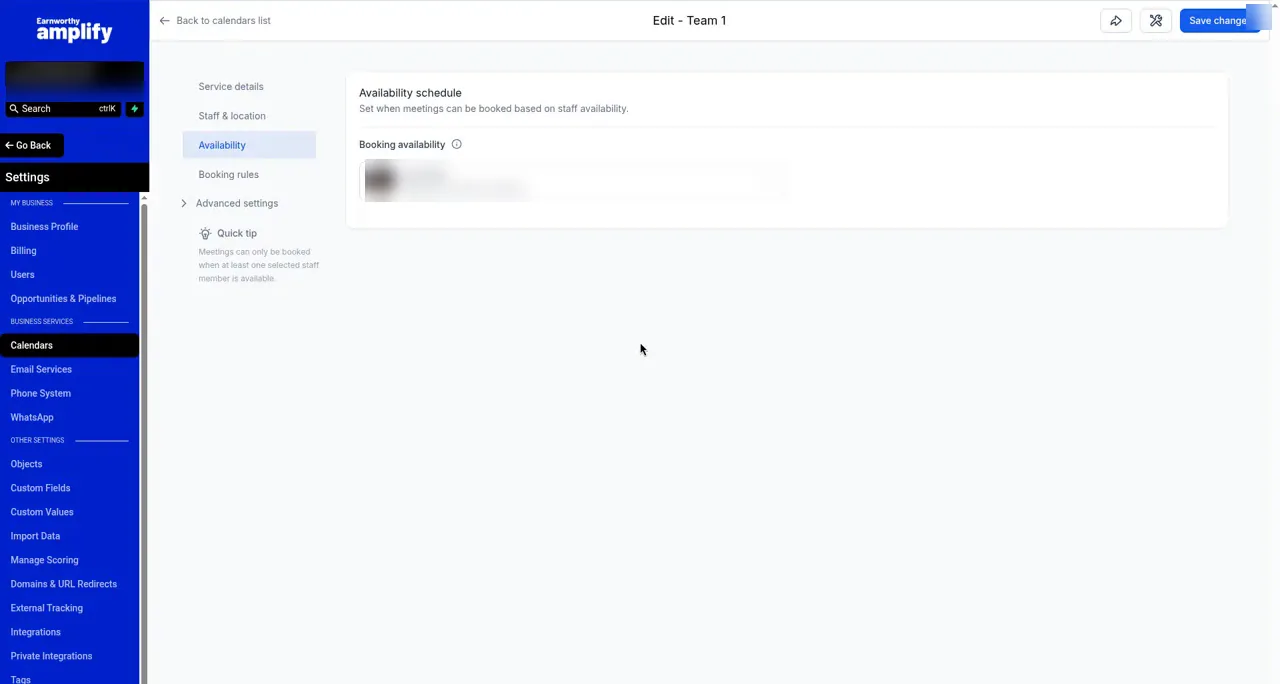
The step-by-step is in How to Set Your Booking Availability.
Keep it in sync
Use Google or Outlook for personal stuff? Connect it so those events block booking times. See Stop Double Bookings and Let Customers Reschedule.
Put your link where people look
Your booking link belongs on your website and your Google profile. See Add Your Booking Link to Your Website and Google Business Profile.
Appointment reminders
We set up your appointment reminders for you, so customers get a heads-up before they show. Want the timing or wording changed? Email support@earnworthy.com.
Next step: Getting Texting Approved.